
 Weltweit im Ruhestand
 wuzze.de
[Artikel ist in Arbeit]
Related articles:
- My standard Windows 10/11 Setup
- Dienste & Apps, Linux/Windows, Android
- Mein Linux Mint Setup
- The Ultimate Windows Utility O&O ShutUp10++, privacy.sexy.
For a long time, I have felt uneasy about relying so heavily on software from Google, Microsoft, and others for convenience; see Digitale Souveränität.
Linux Mint Cinnamon (European) is a viable alternative to Windows.
- Mint is fine even for non-technical users.
- Mint is easier to install than Windows.
- Windows by default sends a lot of data to the cloud (externally controlled infrastructure): system and device data, usage and diagnostic data, error and log data, account and profile data, tracking and location data, communication and content data.
Linux is more data‑sparing and does not send any of this data to the cloud. Control lies entirely with the user. However, individual applications on both Windows and Linux can transmit such data to the cloud. - Linux has its quirks too. After a while, when simply starting Chrome, Mint complained about my login password no longer being valid, apps crash like in Windows but they fail faster and may not destabilize the kernel and OS and app devs confuse language and locale, as they do everywhere…
Windows
- It is cumbersome to reduce the data Windows sends to the cloud.
- MS obviously will never get robust updates. Flawed updates might cost you nerves and time.
- On the other hand, I’m used to Windows and own many licenses; see Vexler Tesla owners‘ MUSK-TRUMP dilemma: keep or ditch?
- Microsoft’s new (from 18y ago) „We share your Pain (WSYP)“ Program 🙂
My Windows Approach
Paul Thurrotts approach: De-Enshittify Windows 11: Start Fresh with a New Install of Windows 11
This screenshot shows Windows with
- No MS accounts
- OneDrive removed
- Tresorit cloud storage folders pinned as
- File Explorer favorites
- Office save as defaults
- Thunderbird as PIM
Might stick with Outlook (classic) because I am way more productive with it. - For enhanced privacy or unsafe browsing: Brave ‚Private Window with Tor Connectivity‘ in Windows Sandbox
See Browser, Tor & Tails zum anonymer surfen & weniger Werbetracking - Several PWA apps (like Google Calendar) pinned to the Panel
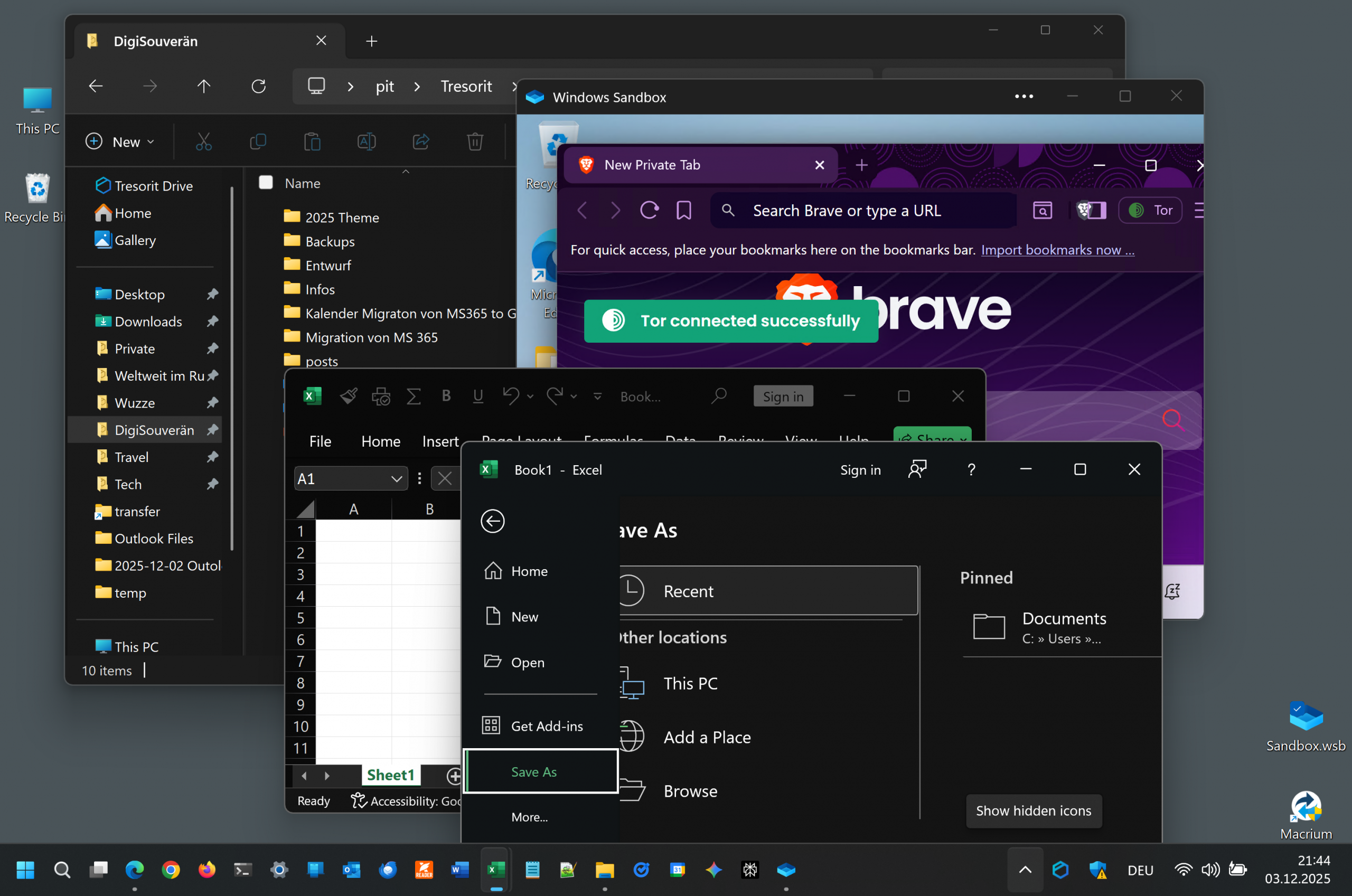
Here’s my approach to installing and maintaining a debloated, privacy‑hardened Windows system. While no solution is as clean as Linux, this represents a good practical, though limited, way to tame Windows.
- Debloated and privacy-hardened Windows install and maintenance
- Using MicroWin of Windows Toolbox by Chris Titus. This does not only harden Windows but also streamlines the setup process.
Costs 10€ – well worth it. Devs should be paid for their work. If a product is free, this is either self-exploitation or you are the product. - Alternatives: tiny11, Winhance
- Unwanted apps and settings might „sneak in“ after running Windows for a while, but can be removed again.
Windows 11: Kill Telemetry, Widgets & Bloat – YouTube
- Using MicroWin of Windows Toolbox by Chris Titus. This does not only harden Windows but also streamlines the setup process.
- Link PC to MS Accounts?
I am astonished how little one loses with not linking to MS accounts- Without an MS account for more privacy
- You still have the core Windows funtionality
- Can run desktop apps
- Use the internet
- Can install Microsoft Store Apps
- Use Windows Update
- Can still manually use Microsoft services (e.g., log into OneDrive or Outlook in a browser)
- Windows 11 widgets work with limitations
- Generic newsfeed only. No customizations
- No widgets that rely on MS account data, such as the To Do list or Calendar widgets.
- You only lose
- Windows Phone Link
- Find My Device
Such a feature can really be helpful: an cquaintance used it out of Germany to lead police in Africa to a stolen MacBook. - Windows Hello PIN Reset
- Automatically backing up BitLocker keys with the account
Can easily back them up manually to Tresorit - Sync across devices
Is of limited use anyway: Settings sync is chaotic and incomplete. OneDrive sync is unreliable.
- While I don’t share many of Braxman’s assessments, still an interesting video
The Only Safe Way to Use Windows 11 – Eliminate the Microsoft Account (MSA) Permanently – YouTube
- Without an MS account for more privacy
- Storage encryption
- Cloud storage
- End-to-end encrypted (E2EE) via Tresorit
See Daten-Schutz (Ende-zu-Ende Verschlüsselung, …)
Migrating from OneDrive to Tresorit offers more than just E2EE. It provides significant relief from OneDrive’s persistent issues, including sync failures, poor sync performance, and confusing design choices like the flawed and complex folder backup feature. OneDrive for Business is even worse, burdened by poorly documented file-naming restrictions. - Personal and security‑critical data should only be stored in the cloud with end‑to‑end encryption. Encryption in transit and at rest alone are not sufficient here.
- Storing all data in the cloud makes it easy to reset PCs and set up new ones without the risk of losing something.
- Local drives via BitLocker
For internal and removable drives.
- End-to-end encrypted (E2EE) via Tresorit
- If you worry about governments being able to crack these encryptions, you likely
- Face bigger problems than decrypted data
- or may possess paranoid tendencies
that necessitate more stringent security measures.
- Cloud storage
- Cloud storage for data security
To prevent data loss, I store all important data in folders synced to the cloud and between my devices. This is easier and more robust than local backups. It is safe for personal and security-critical data because my cloud storage provider uses E2EE. - Image backups. To speed up resetting PCs
I prefer Macrium. It can:- Restore partition images completely
- Restore partitions to a different PC
- Mount images and select single files to restore
- For Macrium restore tricks, see Using the Windows Dev Kit 2023 ARM Mini-PC as Office Computer
My approach is limited by
- What MS allows to disable, e.g.
- „Required only diagnostic data“ being shared cannot be deselected.
- If Windows Store is installed, you can’t prevent it from installing and updating unwanted apps
- MS sneaking in unwanted apps and settings over time
I don’t know how much using Windows Toolbox or tiny11 really helps in creating a more sovereign initial Windows install, and this is a moving target. But using these tools requires only a little effort, and the devs seem to be working on permanently adjusting their tools to protect us.
In addition to the initial setup, Windows Toolbox or Winhance allows you to clean existing installs from time to time.
The option to switch to Linux is readily available to most users.
It isn’t worth worrying too much about unwanted apps as long as they don’t leak data. Disk space they occupy only matters on very storage‑limited devices. Running processes don’t consume significant resources as long as they remain inactive.
BTW: Windows no longer does decays over time. Clean installs to fix (performance) problems are typically no longer necessary.
Setup
My Steps for an Initial Windows installation:
Prepare
- Generate a list of apps wanted from an existing PC via
Get-ItemProperty HKLM:\Software\Microsoft\Windows\CurrentVersion\Uninstall* ,
HKLM:\Software\WOW6432Node\Microsoft\Windows\CurrentVersion\Uninstall* |
Select-Object DisplayName, DisplayVersion, Publisher, InstallDate |
Where-Object { $_.DisplayName -ne $null } |
Sort-Object DisplayName |
Export-Csv -Path „“$env:USERPROFILE\Desktop\InstalledApps.csv““ -NoTypeInformation -Encoding UTF8 - Create optimized ISO
- via MicroWin of Windows Toolbox
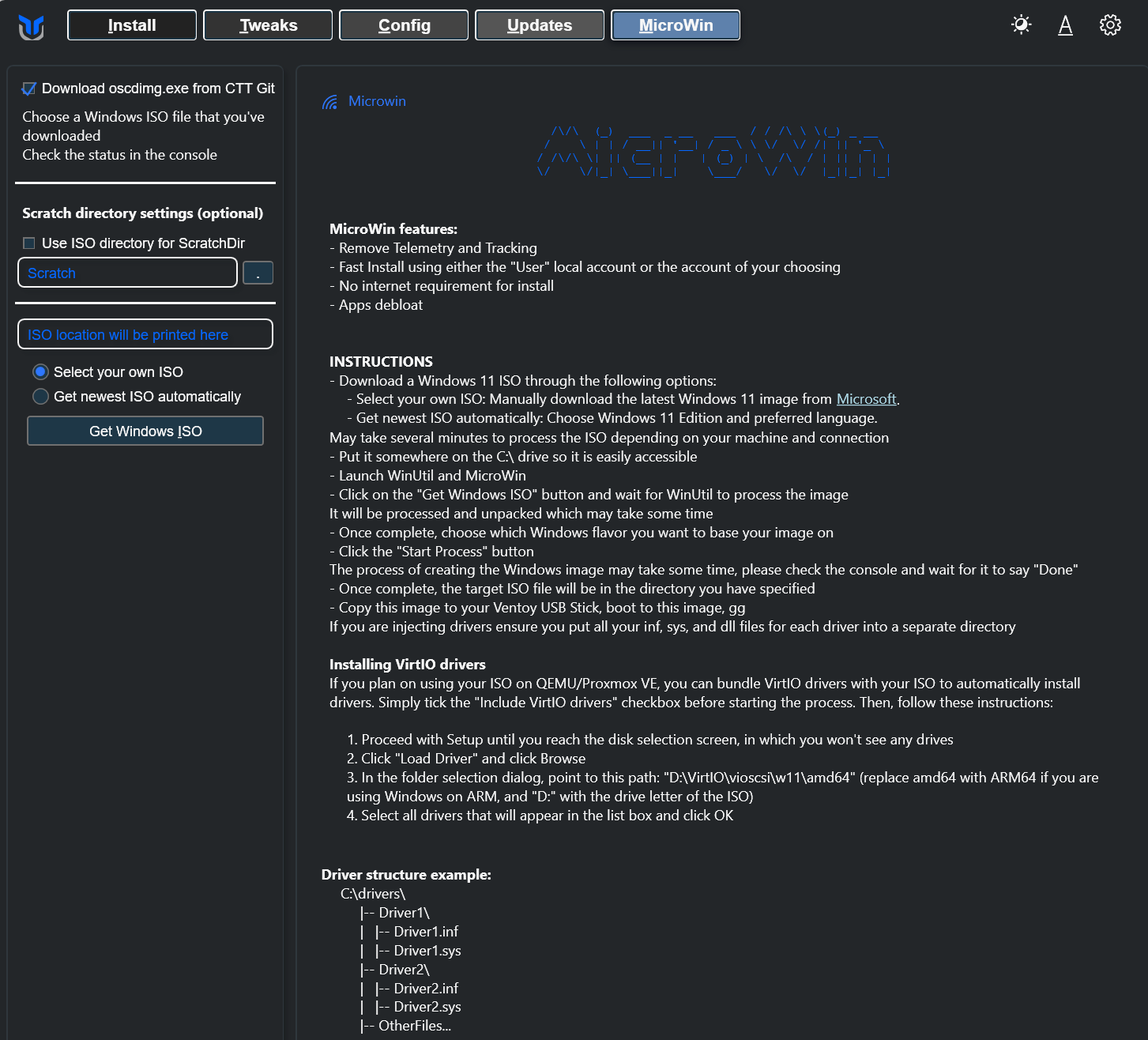
- Put Windows Toolbox.exe and Windows .ISO in one folder on c:\
- Exclude this folder from virus scanners
- Run Winutil.exe
Follow instructions.
Be patient! It takes a while to start and to process the .ISO.- Asks for a username and password
Which it seems not to use with Windows Setup
- Asks for a username and password
- Close Winutil
- Create a bootable USB-Stick via
Rufus
- via MicroWin of Windows Toolbox
Install Windows
Current Windows installers leave Linux dual-boot loaders intact.
- Install Windows from USB-Stick
- Language: English (United Kingdom)
Although I am German, I prefer English as my display language because the UI texts are shorter, translation errors are less frequent, and it is easier to search for help using English texts and error messages. Unfortunately, Microsoft and many app developers often confuse display language with locale, which results in applications showing a German UI even though I want a fully English interface or not honoring my locale settings.
Don’t waste your time with this! They will never get this sorted out. Just work around it with minimal effort. - I generally select English (GB) for my language settings, as its locale conventions are close to German—just in case some system features or applications do not properly respect locale settings.
- Time and currency format: German
- Keyboard: German
- Do not connect to WLAN!
This would force unwanted stuff onto your PC later in the setup process.
Select „I don’t have internet“ - Send diagnostic data to MS
„Required only“ cannot be deselected.
As an IT professional, I can understand the rationale, but with Microsoft and other US Big Tech having lost their moral compass, I dislike it. This data is pseudonymized: while theoretically anonymous, it contains unique device identifiers that can be used to deanonymize it. - For good passwords see Daten-Schutz (Ende-zu-Ende Verschlüsselung, …)
- Remember: For the answers to security questions, you should lie (not supply truthful info, which can be hacked via social engineering)
- Language: English (United Kingdom)
- Check if Windows settings and installed apps are as expected
- Connect to the internet.
- Install updates
- Install Windows updates via
settings > update > check for updates
AND
update > advanced options > optional updates- This typically finds many Windows, firmware, and driver updates.
- Be prepared for a restart orgy 🙁
- Click restart only after all updates are either installed or show „pending restart“
- Fix problems via „Get Help“
If you are sick of troubleshooting MS troubleshooters, try- elevated Terminal:
net stop wuauserv
net stop cryptSvc
net stop bits
net stop msiserver
ren C:\Windows\SoftwareDistribution SoftwareDistribution.old
ren C:\Windows\System32\catroot2 catroot2.old
net start wuauserv
net start cryptSvc
net start bits
net start msiserver - Don’t invest too much energy here!
Update problems often go away all by themselves after a couple of days
- elevated Terminal:
- Install the PC maker’s updates via their tool
e.g. Lenovo Vantage commercial (the commercial version is less bloated) - Force Store app updates via
store app > updates > check for updates
- Install Windows updates via
- Check for unwanted apps and settings
- Manually going through Windows settings and via
- WinUtil Tweaks
- Remove OneDrive
Might have to try via Start Menu uninstall too - Disable defaults:
- Center Taskbar Items
The default „center“ looks ugly and is nonsense, as it causes icons to move when starting apps. - Widgets Button in Taskbar
To always show temp
- Center Taskbar Items
- Remove OneDrive
- Complete Windows setup
- Fix language and locale settings. If your display language and locale differ, this is always messed up.
Adding English (UK) as a first preferred language, even though it is the Windows display language already, at least forces the Windows Store and Windows Security to English - Disable Windows Fast Startup
No modern PC needs this dreadful setting. It needlessly increases shutdown time by writing the system state to persistant storage and is one source of instabilities. Via
control panel > hardware and sound > power options > change what power buttons do > change settings that are currently unavailable > deselect „turn on fast start“ - Tighten admin security via
Control panel > user account control settings: Always notify
This improves security and only costs rare additional confirmation prompts. - Enable Windows Restore
control panel > create restsore point > configure - Install password manager
- 1Password (my favorite)
- or Bitwarden (FOSS)
- Enable local drive encryption via
BitLocker - Enable Windows Sandbox
To keep Windows clean when testing stuff and visiting questionable websites sandboxed.- I keep a .wsb config on my desktops that starts Sandbox with additional RAM and installs Brave
Start Windows Sandbox with preinstalled Apps
- I keep a .wsb config on my desktops that starts Sandbox with additional RAM and installs Brave
- [Enable Widgets]
To use Widgets without MS accounts- Install Windows Web Experience Packs
- Show Taskbar icon via
Taskbar settings: Widgets: on
- Manually configure Windows settings
I don’t know of a backup/restore tool for complete Windows settings.
See My Windows 10/11 Setup: Configure Window
- Fix language and locale settings. If your display language and locale differ, this is always messed up.
- Install and configure cloud storage
- Tresorit
- Pin important Tresoit folders to File Explorer Quick Access
- Create an initial image backup via
Macrium (UK)
Install productivity apps
- Via WinUtil GUI > Install
- UniGetUI to keep apps updated
- Internet Browsers
Edge, Firefox, Brave, Chrome - 7-Zip
- Notepad++
- PIM
- [Thunderbird]
For best digital sovereignty - Two defaults I always disable:
- Disable threaded view. Threaded, I often miss replies to older mails. Via
alt > view > sort by > unthreaded - Place signature below reply, via
account settings > composition & addressing > place my signature: below my reply
Default is: below quote
- Disable threaded view. Threaded, I often miss replies to older mails. Via
- [Thunderbird]
- [LibreOffice (European)]
For digital sovereignty - PDF reader/editor
- Foxit PDF Reader (free)
Supports filling out forms and signing with a signature image (I don’t use digital signatures yet) Acrobat
Excessive sales pitches and updates.
- Foxit PDF Reader (free)
- [Joplin] for complex notes.
I have not decided yet on a replacement for OneNote - VLC Video Player
- …
- Manual install
- MS Office
My preference, because I am very productive with it.- Office 2024 standard one‑time purchase, 39€ per PC, no subscription. 5y update guarantee until Oct 2029.
- Includes Outlook (classic)
I am still undecided between staying with Outlook or switching to Thunderbird, as I am more productive with OL. The new Outlook is definitely not an option – it stores emails from non-MS accounts and their credentials on MS servers. The OWA privacy statement is unacceptable: „We and our 940 partners process data to: store and/or access information on your device,…“ - Remove the option to save to OneDrive and add Tresorit as default via
- In Office, log out of MS accounts
- file > options > save
– save to computer by default:on
– default file location = C:\Users\<name>\Tresorit\Documents - Save once to \Tresorit\Documents
and pin the folder - Disable OneDrive Documents being offered via adding
OnlineStorage WORD =1 to
HKEY_CURRENT_USER\Software\Microsoft\Office\16.0\Common\Internet
- Configure Quick Access toolbars
- [Windows Phone Link]
Comes preinstalled.
Requires an MS account. - AI Chatbots
- Update desktop apps via UniGetUI
- [Google PWA Apps]
I accept losing some digital sovereignty for these apps. One might opt for FOSS apps and services from EU providers instead.- Google Keep for simple notes
I like using Keep for hands‑free voice notes when I’m in bed or riding my MTB - Google Tasks
For its super efficient UX - Google Calendar
Only Google calendars work with Google Assistant and Home. - PWA apps can be installed to
- Run in a standalone window without browser UI.
- Pin to the Taskbar
- Pin to Start
- via
chrome > … > cast, save & share > install
- Google Keep for simple notes
- Paint.NET
- Snipping Tool
I’m trying to get by with the built‑in Windows Snipping Tool instead of Greenshot. The Snipping Tool now even supports text extraction from images.
- MS Office
Finalize
- Once more, force Windows updates using
settings > update > check for updates
AND
update > advanced options > optional updates
In my experience, Windows Update often finds something new again, or previous update errors disappear, or new problems show up…
- Run a complete virus scan
- Check the Windows Event Logs (Application and System) for anything unusual.
- Check the Windows Reliability History.
- Create a final image backup
Now you have a complete Windows install to quickly reset to - Let the PC run idle overnight.
To give it time to settle in.
Via settings > system > power & battery > screen… > make my device sleep after: never
Configure Windows and Apps
File Explorer options
- Open File Explorer to: This PC
- Show recently used files: off
- Show recently used folders: off
- Show recommended: off
- Compact view
- Single-click to open an item
I am quicker using single-click. One only has to master selecting multiple files with single-click enabled. - Deselect ‚Hide extensions of known file types‘
- Show encrypted or compressed NTFS files in color
- Use check boxes to select items
Deselect ‚Hide protected operating system files‘
Always showing protected OS files is no longer helpful since after Windows XP.
For detailed settings, see My Windows 10/11 Setup: Configure Windows and Install Apps
Microsoft Accounts
When you sign in to a Microsoft service, sometimes a dialog appears: “Continue to sign-in.” Unfortunately, choosing “Don’t sign-in” cancels the intended login. Selecting “Continue” configures an account in Windows. On a PC where you want maximum sovereignty, that’s undesirable. In addition, it often leads to a mix-up of different logins that even Microsoft itself no longer understands—for example, when logging in with x.outlook.de, it suddenly asks for the passkey to y.petermeinl.de. Such “junk” accounts can be removed using Credential Manager, Accounts, and Email & Accounts.
Link PC to Microsoft Account?
I installed Windows without an MS account. I am undecided yet whether to connect the PC to my MS account.
- In Feb 2026 I connected my PC to a personal MS Account to be able to continue using OneNote, which uses OneDrive to sync. This does not require the OneDrive app to run.
Remove unwanted MS accounts
Migrating away from MS 365 included adding an MS work account to Outlook (classic).
- After disconnecting MS 365 from OL, check if MS services like OneDrive, OneDrive for Business and SharePoint are still connected to OL and disconnect them via
outlook > file > office account > connected services - Check if an unwanted MS Work account exists in Windows and remove it via
windows > settings > accounts
Schreibe einen Kommentar